Usage & Approval Workflow
How employees submit requests, how approvers receive and act on them, and how decisions flow back to systems of record.
Table of Contents
- Submission Channel (Copilot Studio)
- Approval Routing (Work IQ + Power Automate)
- Teams Adaptive Card
- Learning from History
- System Updater Agent — Post-Decision
- Next Steps
Submission Channel (Copilot Studio)
Microsoft Copilot Studio provides the conversational front-end. Employees submit requests via a Teams bot — no portal login or form navigation required.
Creating the Bot
- In Copilot Studio, create a new AI Agent:
Software Request Bot. - Add a topic: “New Software Request”.
- Define the intake form collecting:
- Software name + version
- Vendor name
- Business justification
- Number of licenses needed
- Requester details (auto-populated from Entra ID via SSO)
- Add an action: Call Azure AI Foundry agent using the HTTP connector to trigger the
orchestrator-agentvia the Foundry Agents API. - Publish the bot to Microsoft Teams.
Foundry API Connection
In Copilot Studio, add a custom connector pointing to:
POST https://<project-endpoint>/agents/<agent-id>/sessions/<session-id>/messages
Authenticate using Entra ID (OAuth 2.0) — never use API keys in Copilot Studio connectors. Configure the connector with an Entra ID app registration that has the Foundry Agents API caller role.
Approval Routing (Work IQ + Power Automate)
After the Report Builder Agent completes the report, Power Automate handles routing and capture.
Approval Flow Steps
- Power Automate trigger: Foundry agent completion webhook (or polling).
- Work IQ org-hierarchy lookup → identify the correct approver for the requester’s department.
- Send a Teams Adaptive Card to the approver with the report summary.
- Wait for approver response (Approve / Conditional Approve / Reject / Defer).
- Trigger the System Updater Agent with the decision payload.
Teams Adaptive Card
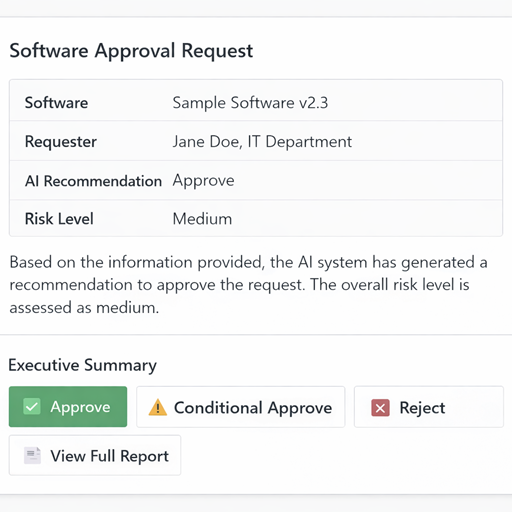
The approver receives the following card in Teams — no email, no portal login required:
{
  "type": "AdaptiveCard",
  "version": "1.5",
  "body": [
    {
      "type": "TextBlock",
      "text": "Software Approval Request",
      "size": "Large",
      "weight": "Bolder"
    },
    {
      "type": "FactSet",
      "facts": [
        { "title": "Software",        "value": "${softwareName} v${version}" },
        { "title": "Requester",       "value": "${requesterName}, ${department}" },
        { "title": "AI Recommendation","value": "${recommendation}" },
        { "title": "Risk Level",       "value": "${overallRisk}" }
      ]
    },
    {
      "type": "TextBlock",
      "text": "${executiveSummary}",
      "wrap": true
    }
  ],
  "actions": [
    { "type": "Action.Submit",  "title": "✅ Approve",             "data": { "decision": "approve" } },
    { "type": "Action.Submit",  "title": "⚠️ Conditional Approve", "data": { "decision": "conditional" } },
    { "type": "Action.Submit",  "title": "❌ Reject",              "data": { "decision": "reject" } },
    { "type": "Action.OpenUrl", "title": "📄 View Full Report",    "url": "${reportUrl}" }
  ]
}
Learning from History
The Report Builder Agent queries past reports as grounding examples:
- Past APPROVED reports for similar software categories → positive examples to model tone and completeness.
- Past REJECTED reports → identifies common rejection reasons to flag proactively in the new report.
This is powered by the report-template-index Azure AI Search index, which accumulates completed reports over time.
System Updater Agent — Post-Decision
Once the approver submits a decision, the System Updater Agent writes back to:
| System | Action |
|---|---|
| ServiceNow | Create CMDB entry / software asset record |
| Microsoft Entra ID | Begin provisioning group/license assignment |
| Microsoft Intune | Flag for app packaging/deployment workflow |
| SharePoint Software Catalog | Add to approved software list |
The agent uses Managed Identity and HTTP connectors — no stored credentials.
Next Steps
- Report Specification — see the exact report template the Report Builder produces.
- Security & RBAC — understand the identity model for Copilot Studio connectors and Power Automate flows.
- Troubleshooting — if the Copilot Studio connector fails with 401 errors or the adaptive card doesn’t appear.